How to Choose the Best UV Digital Printing Machine
Choosing a UV Digital Printing Machine is not just a question of price or advertised speed. The right choice depends on what you print, how often you print, and the finish your customers expect. A shop producing phone cases has different needs from a sign maker handling rigid panels. Small details matter.
Before comparing models, identify your typical materials, maximum sheet size, daily output, and acceptable setup time. Check whether the machine supports the substrates you actually use, such as acrylic, wood, glass, or coated metal. Ask for a live sample, not only a polished brochure image. Fine text, solid color areas, and white-ink coverage can reveal issues that a quick demonstration may hide. Ink adhesion and curing consistency matter too.
This guide explains how to evaluate print quality, bed size, printhead configuration, software, maintenance, and total operating cost. It also covers practical questions, including cleaning routines, replacement parts, operator training, and technical support. A low purchase price can become expensive if downtime interrupts production. Yet a premium machine is not automatically the best fit. The trade-offs are not always tidy. Match specifications to real jobs, then verify claims with repeatable tests and clear service terms. A careful decision takes time, and sometimes the first choice needs rethinking. That is useful, not failure.
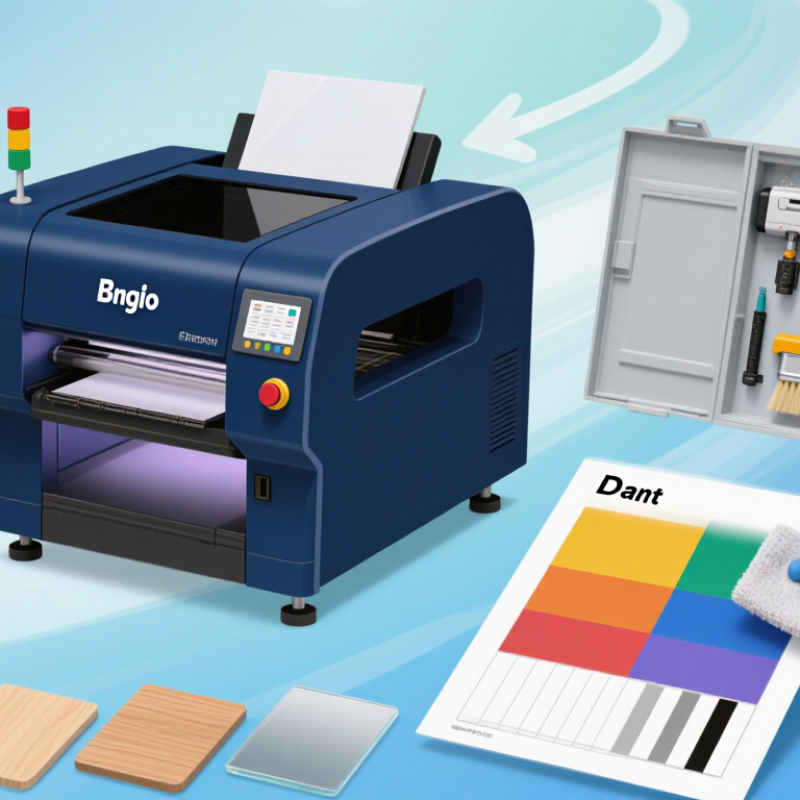
Identify UV printer types by substrate, format, and production volume
Start with the material you print on. A flatbed UV printer holds rigid sheets or objects in place, making it suitable for acrylic panels, wood signs, and small product parts. Check the maximum material thickness and table size; a sample board that nearly fills the bed can reveal awkward loading and alignment issues. Good for rigid items.
Roll-to-roll models feed flexible media such as film, banner material, and self-adhesive vinyl through the printer. They fit long graphics better than flatbeds, but cannot handle bulky objects directly. Hybrid machines combine a flat table with roll feeding. That flexibility sounds useful, yet changing setups can take time, and not every shop needs both modes.
Match the print area to the jobs you actually receive. A compact format may suit short runs of labels or small panels, while wide-format equipment handles larger graphics with fewer joins. Production volume matters too: estimate typical daily output, not just peak demand. Compare expected throughput with setup, loading, and finishing time. Ask for test prints on your own substrates, then inspect fine text, edge detail, and adhesion after curing. UV ink can behave differently across coatings, so one successful sample is not proof that every material will work.
Measure print area and media thickness in millimeters before comparing models
How to Choose the Best UV Digital Printing Machine
Measure print area and media thickness in millimeters before comparing models
Measure the largest item you expect to print, not just your usual job. Record the usable print area in millimeters: length by width, plus room for clamps or registration. A 600 × 400 mm panel may need more bed space than its artwork suggests. Check whether a listed dimension describes the full table or the practical print zone. That detail is easy to miss.
Use calipers to check media thickness at several points, especially on uneven boards or assembled objects. Note the thickest reading in millimeters, then allow clearance for loading and raised features. Compare it with the machine’s stated maximum media height, and confirm how that limit is measured. A tight fit can slow setup or risk contact. Excess capacity may add cost and take up valuable floor space. The right size depends on repeat jobs, not one ambitious project.
Tips: Write the print area, media thickness, and object height on a sample-job sheet. Bring a real sample to a demonstration and watch how it is loaded. Recheck warped edges and coatings; small differences matter. It is tempting to compare speed first, but a machine that cannot hold your material is the wrong fit.
Compare UV-LED curing wavelengths: 365, 385, 395, and 405 nm
Choosing between 365, 385, 395, and 405 nm starts with the ink’s photoinitiator, not the lamp’s headline power. IEC 62471:2006 defines UV-A as 315–400 nm, placing 405 nm just beyond that range. The distinction matters when comparing wavelength specifications and safety measurements. Small detail, big consequences.
A useful comparison is photon energy: approximately 3.40 eV at 365 nm, 3.22 eV at 385 nm, 3.14 eV at 395 nm, and 3.06 eV at 405 nm. These values are calculated from Planck’s constant and the speed of light. Higher energy does not automatically mean better curing; the ink must absorb the lamp’s output. A 365 nm lamp may suit formulations with stronger short-wave absorption. 385 and 395 nm are common choices when the chemistry is tuned for them. At 405 nm, check compatibility carefully, especially with pale or heavily pigmented inks.
Ask suppliers for spectral output, peak irradiance, and dose at the print surface. Dose is measured in mJ/cm²; irradiance is measured in mW/cm². They are related, but not interchangeable. For a practical test, print a solid patch on the actual substrate, then check surface tack and adhesion after curing. Repeat at production speed. Results can shift with ink thickness, pigment load, and lamp distance, so a neat specification sheet may not predict the whole job. Sources: IEC 62471:2006; wavelength-energy values calculated using E = hc/λ.
How to Choose the Best UV Digital Printing Machine
Photon Energy by UV-LED Curing Wavelength
Shorter wavelengths carry more energy per photon. Values are calculated using E (eV) ≈ 1239.84 ÷ wavelength (nm). Wavelength alone does not determine curing performance: ink photoinitiator absorption, UV irradiance, exposure dose, and print conditions also matter.
Evaluate resolution in dpi alongside print speed and pass count
How to Choose the Best UV Digital Printing Machine
Evaluate resolution in dpi alongside print speed and pass count. A 600 dpi setting represents nominal dot spacing of about 42 microns; at 1200 dpi, it is about 21 microns. These figures describe addressable spacing, not guaranteed detail. Ink spread, substrate texture, and head alignment can soften fine edges. Tiny text reveals flaws. A higher dpi number can still disappoint, so ranking machines by resolution alone is an imperfect shortcut.
Pass count changes the balance. More passes often improve coverage and smoothness, but can reduce throughput. Compare machines using the same file, substrate, and print mode. Record output time, inspect small type and solid-color patches, and check consistency across the sheet. The 2024 drupa Global Trends report surveyed more than 600 print businesses and suppliers, offering useful market context; it does not replace hands-on testing for a specific job. Keep the test conditions consistent, or the comparison gets fuzzy.
Tips: Ask for a sample printed at your intended production speed, not just the highest-quality setting. Check fine lines under magnification, then time a full-size panel. Note the dpi, pass count, and speed together. One test may miss variation—repeat it.
How to Choose the Best UV Digital Printing Machine — Evaluate Resolution in dpi Alongside Print Speed and Pass Count
Compare resolution, pass count, and throughput together. The speed ranges below are illustrative planning estimates, not standardized machine benchmarks; actual results depend on printer design, print mode, ink coverage, substrate, and image quality settings.
| Example Print Profile | Nominal Resolution | Pass Count | Indicative Throughput | Suitable Applications | What to Evaluate |
| Production | About 600 × 600 dpi | 4-pass | Approximately 15–30 m²/h | Large graphics, signs, and work viewed from a distance | Prioritize output rate; inspect fine text, gradients, and solid-color uniformity before choosing a fast mode. |
| Balanced | About 600 × 900 dpi | 6-pass | Approximately 8–16 m²/h | General signage, display graphics, and mixed production jobs | A practical starting point when jobs require both reasonable detail and productive throughput. |
| Fine Detail | About 1200 × 1200 dpi | 8-pass | Approximately 3–8 m²/h | Small text, close-viewed graphics, and detailed photographic work | Check whether the extra nominal dpi produces visible improvement on your substrate; expect slower output. |
| Specialty / High Coverage | Mode-dependent; confirm native and addressable dpi | Typically 8-pass or more | Often lower than standard production mode | White ink, layered printing, textured effects, or dense coverage | Request a timed sample using the intended layer setup, ink coverage, and material. |
Buying tip: dpi describes addressable dot placement, not guaranteed visible detail. Ask for a print sample at the intended resolution and pass count, and compare usable output per hour—not just the printer’s maximum-speed figure.
Check ink compatibility, maintenance needs, and total cost of ownership
Before comparing machine prices, confirm that the proposed ink suits your substrates and workflow. Ask for test prints on the actual materials you use, such as coated panels or flexible film. Check adhesion after curing, color consistency, and whether the ink requires special storage. A sample that looks sharp under showroom lighting may still scratch or peel in daily handling.
Include printheads, lamps or LED units, filters, cleaning supplies, labor, and expected downtime in your total-cost calculation. The U.S. Bureau of Labor Statistics reported average private-industry compensation of $43.78 per hour in its March 2024 Employer Costs for Employee Compensation report. That is a useful reminder: routine cleaning and service visits carry labor costs, not just parts costs. Your local rates may differ. A tidy spreadsheet can still miss the cost of a stopped production line.
Tips: Request a written maintenance schedule and price common replacement parts before buying. Run a small production test, then record ink use, cleaning time, and rejected prints. If the seller cannot explain service intervals clearly, pause and ask again.